 Touch RPN for Android: Color editor
Touch RPN for Android: Color editor
Touch RPN for Android: Color editor
Versão em português desta página? Clique aqui.
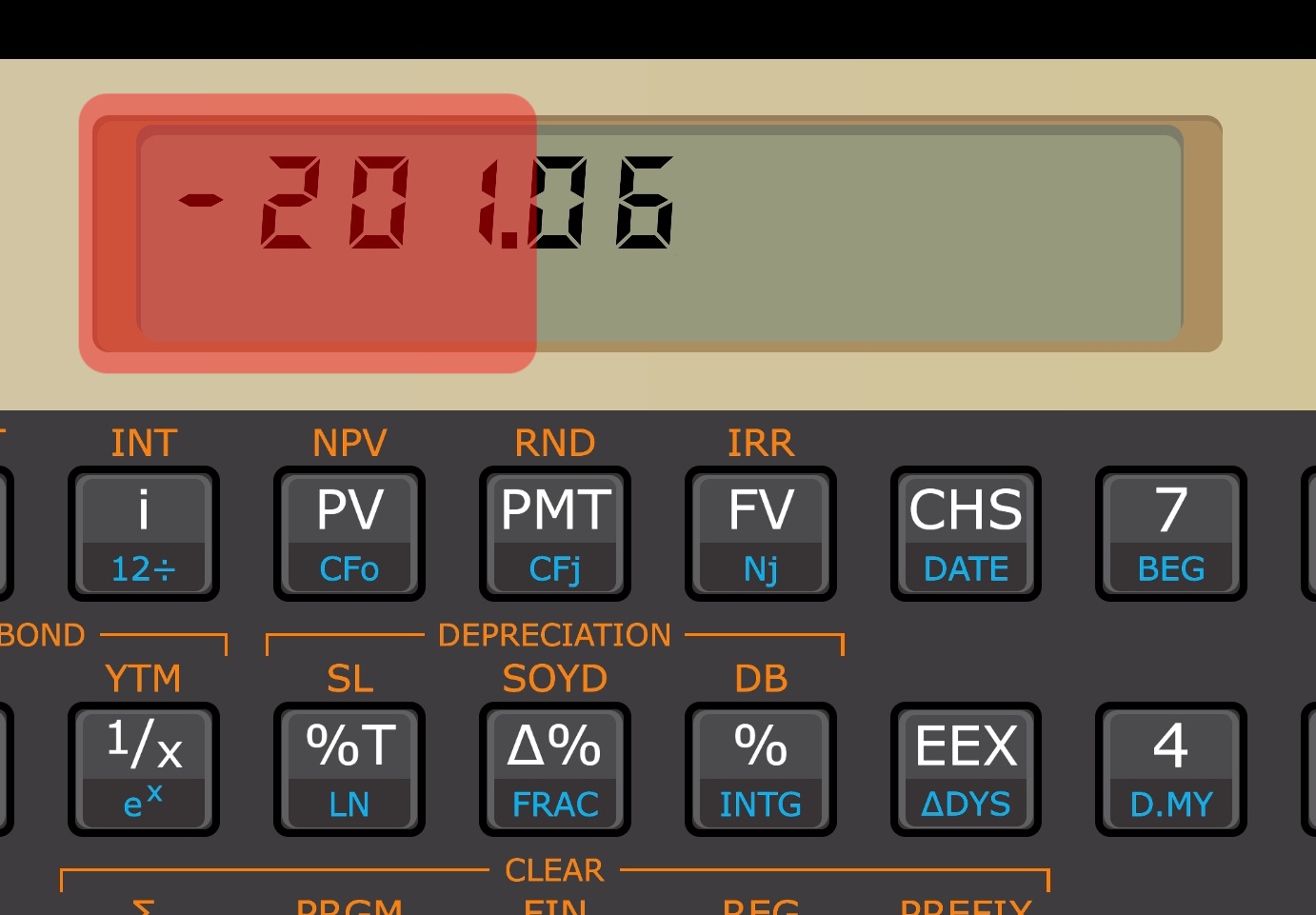
Since the version 7.0, the app allows to change all colors of the calculator interface. The color editor may be reached through a button in Settings pane or by long pressing the left side of the LCD.
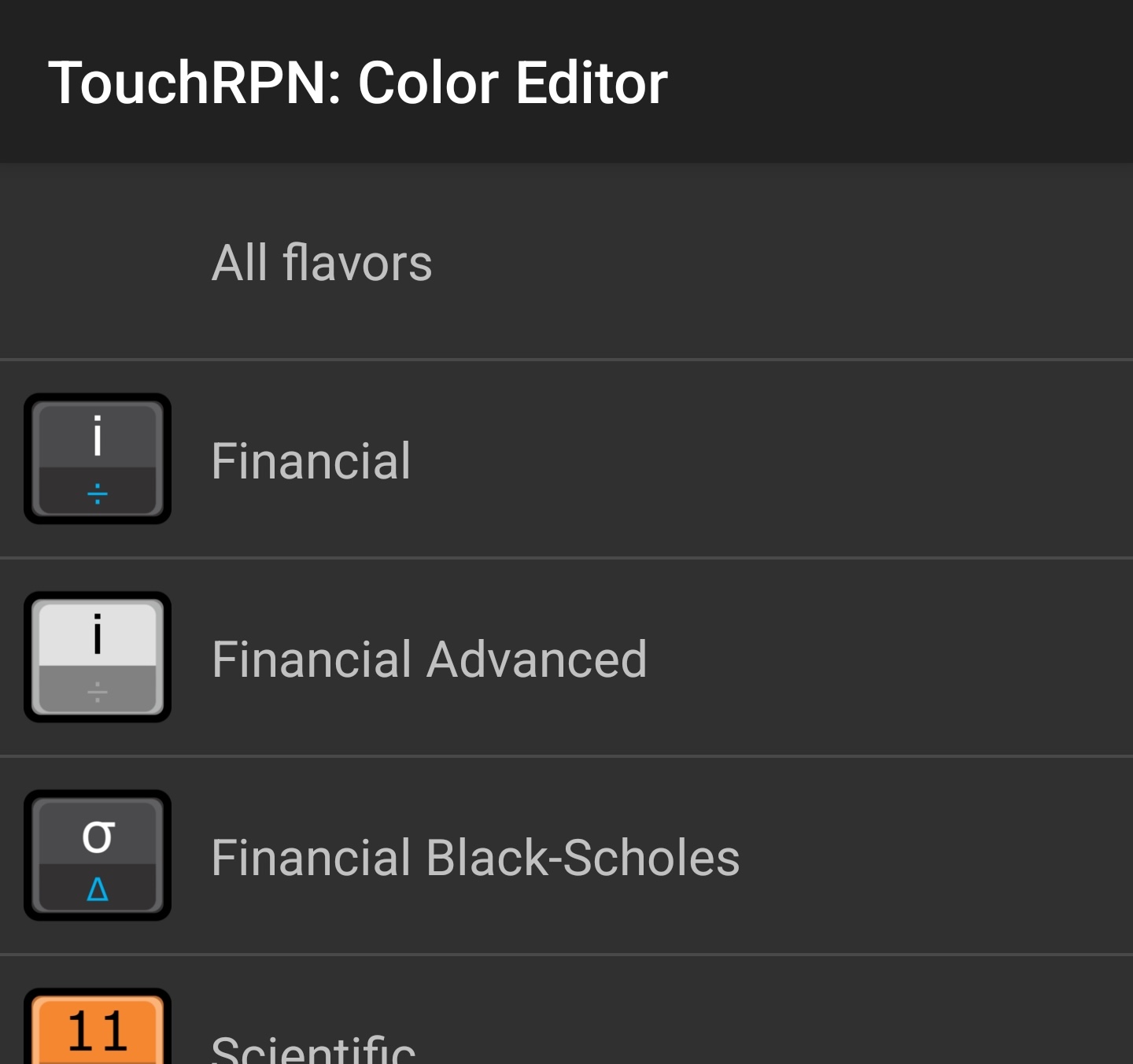
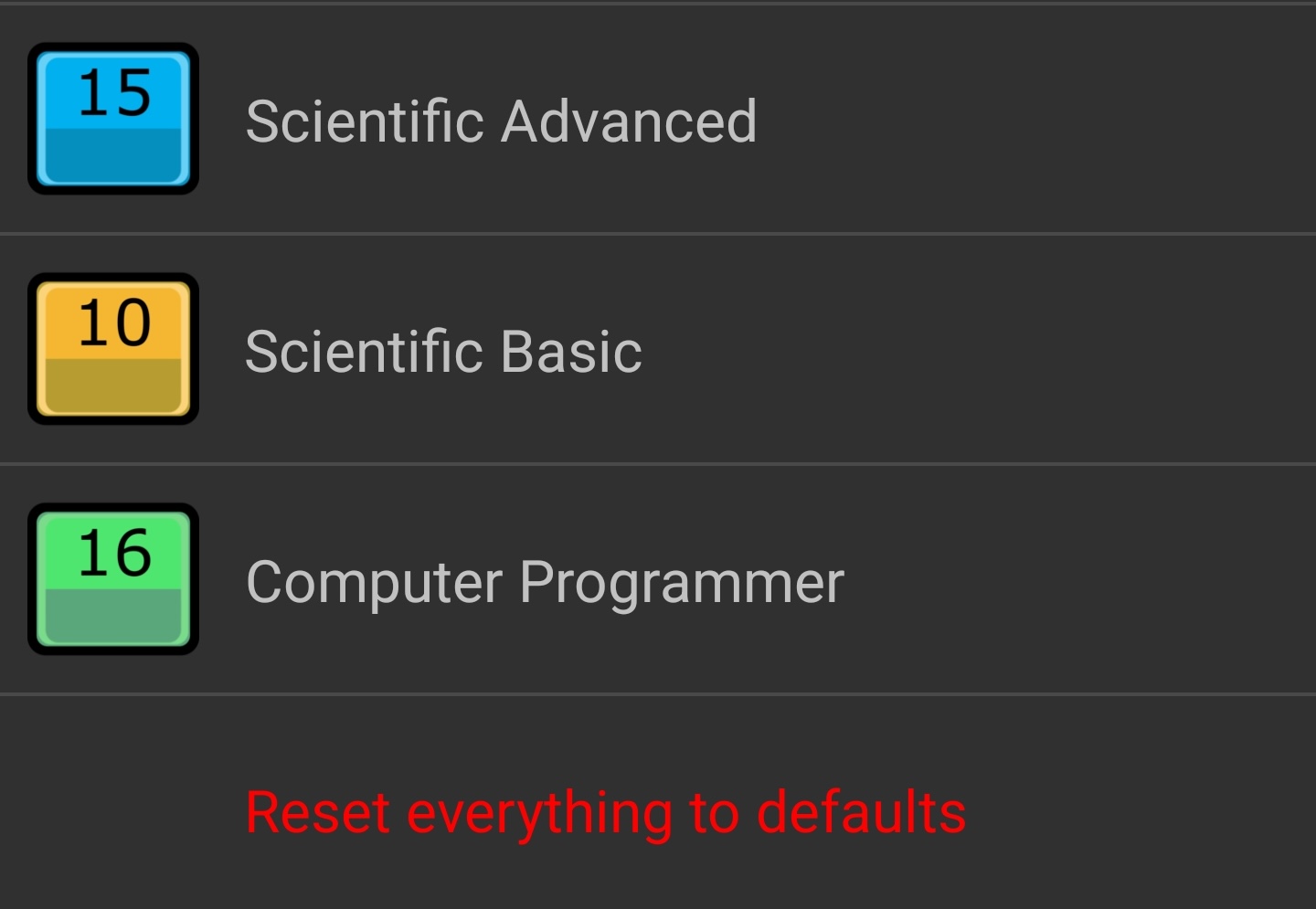
In the main pane, you can select a flavor if you want to change the colors of that particular flavor; or select "All flavors" to change the colors for everyone at once.
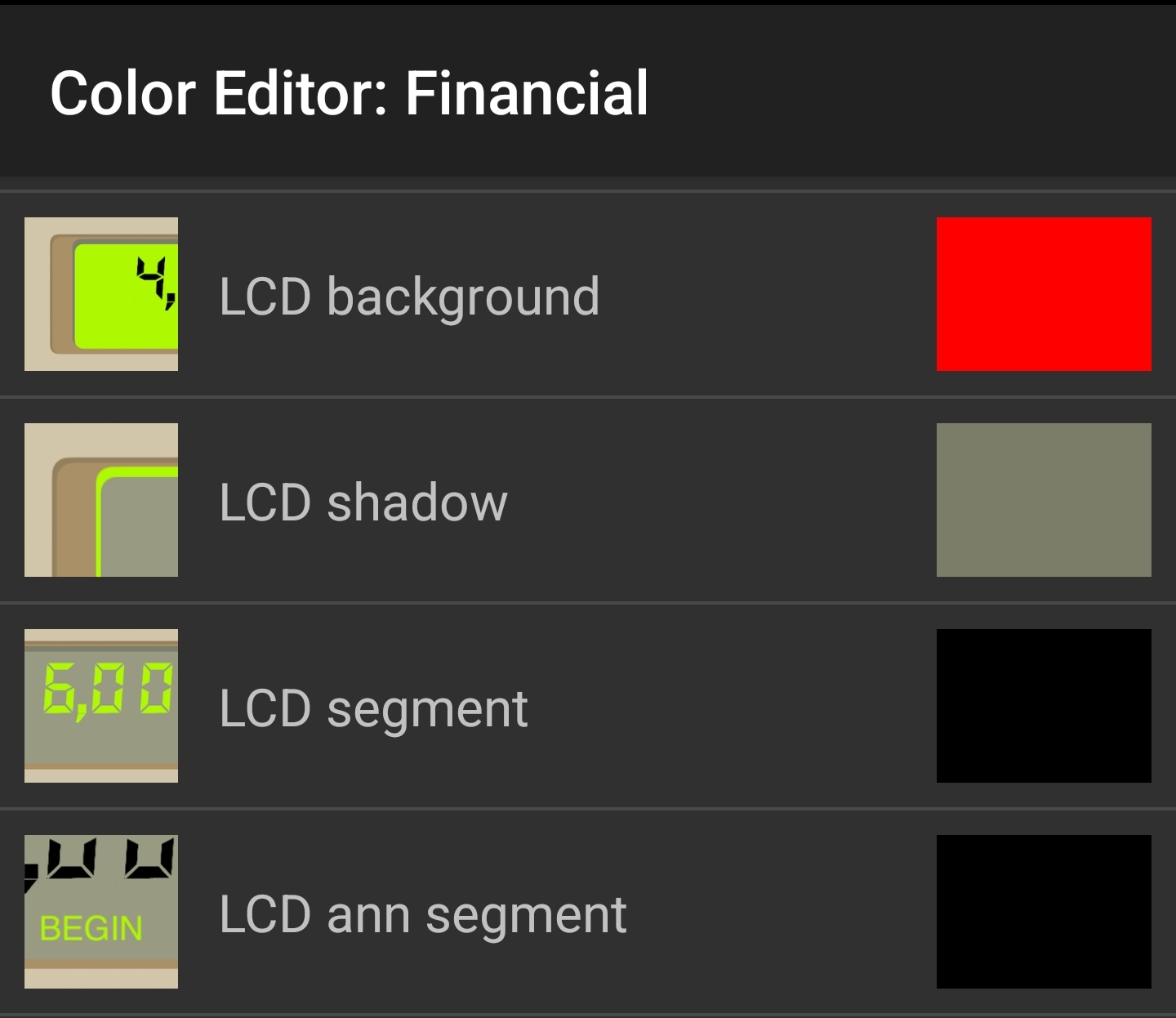
In the secondary pane, you'll find the list of all interface colors, with descriptive icons.
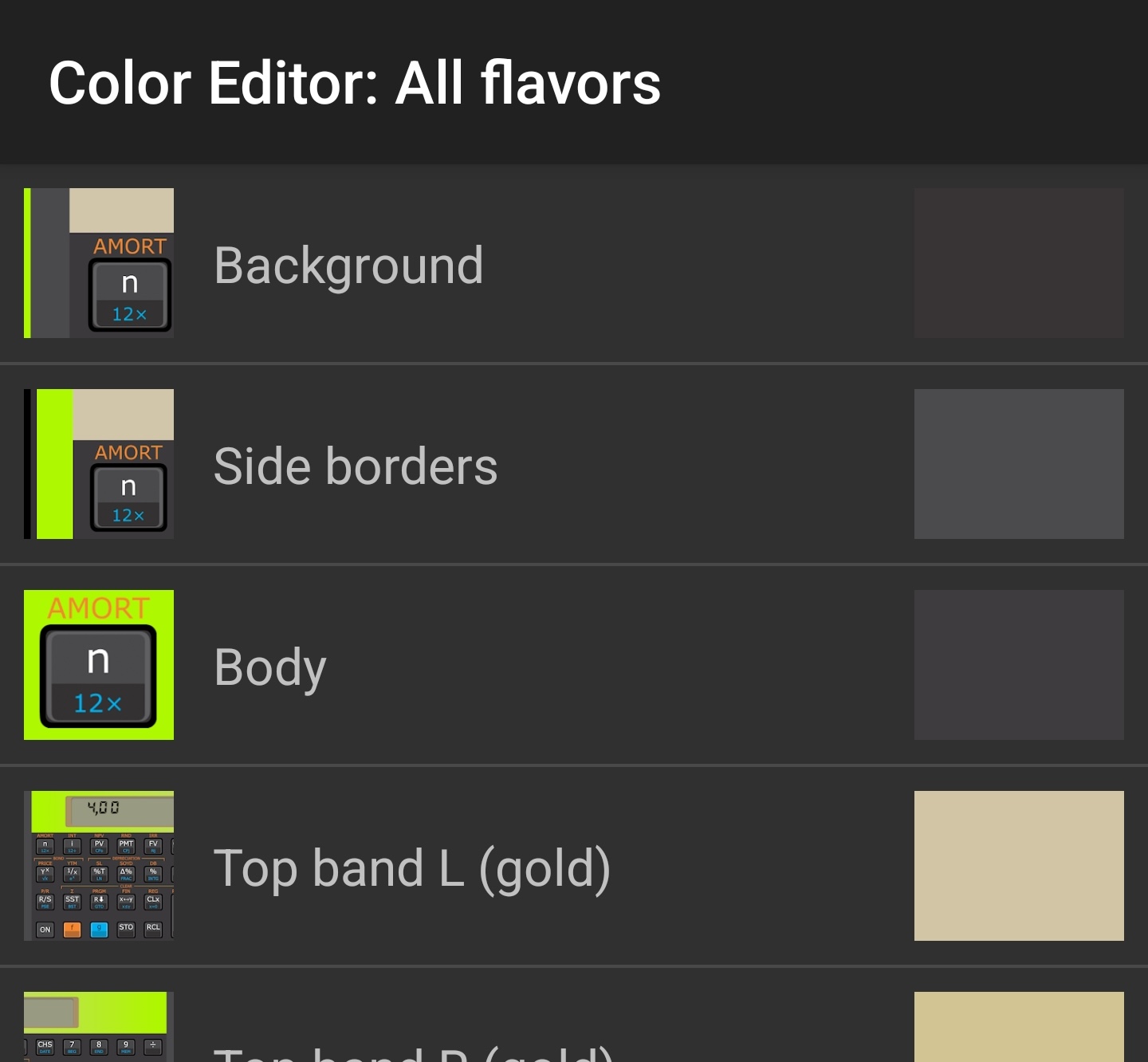
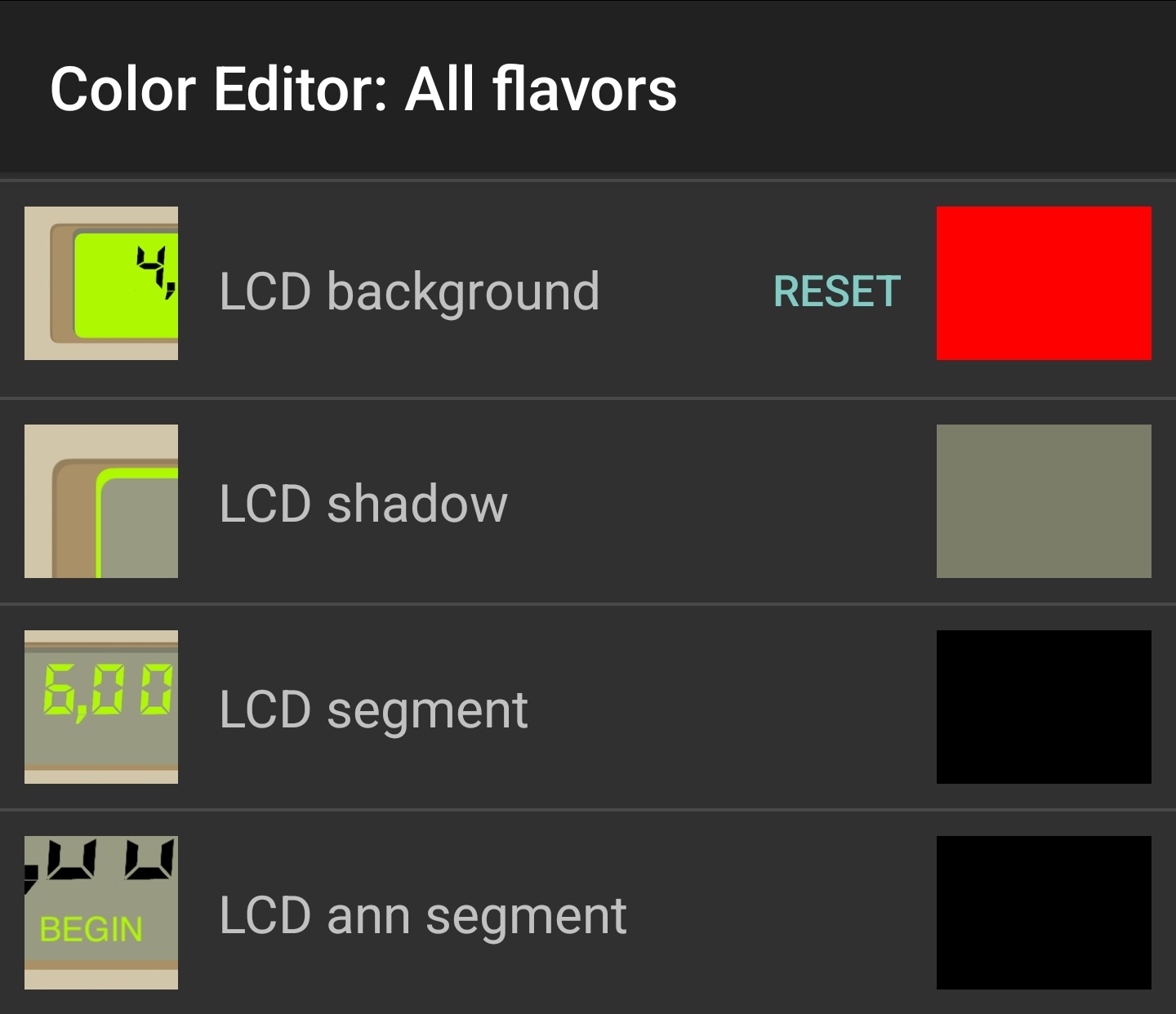
The color list is different in the pane "All flavors", since some color points have two variants ("golden" and "silver").
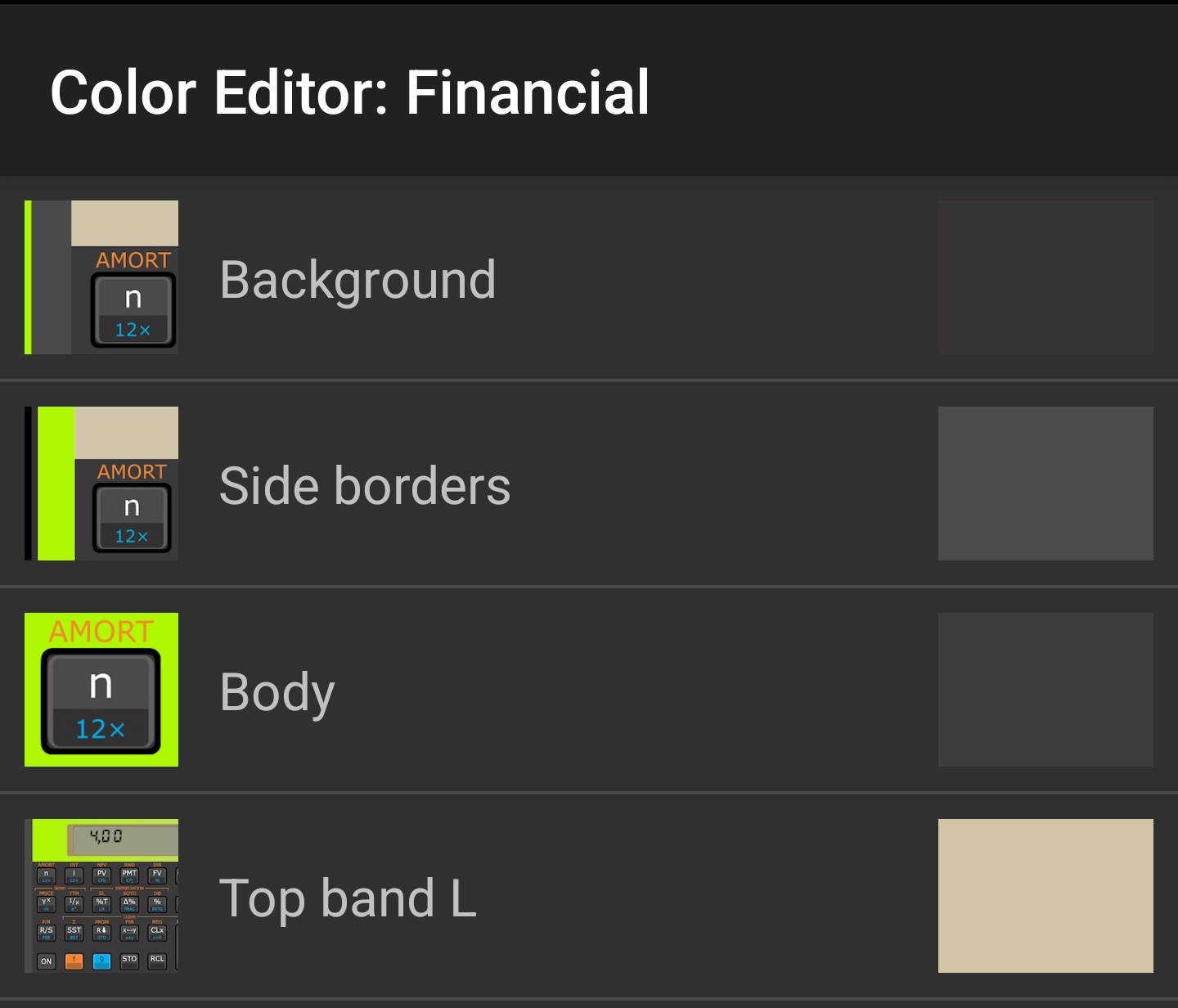
Touch the color sample of some item to open the color picker.
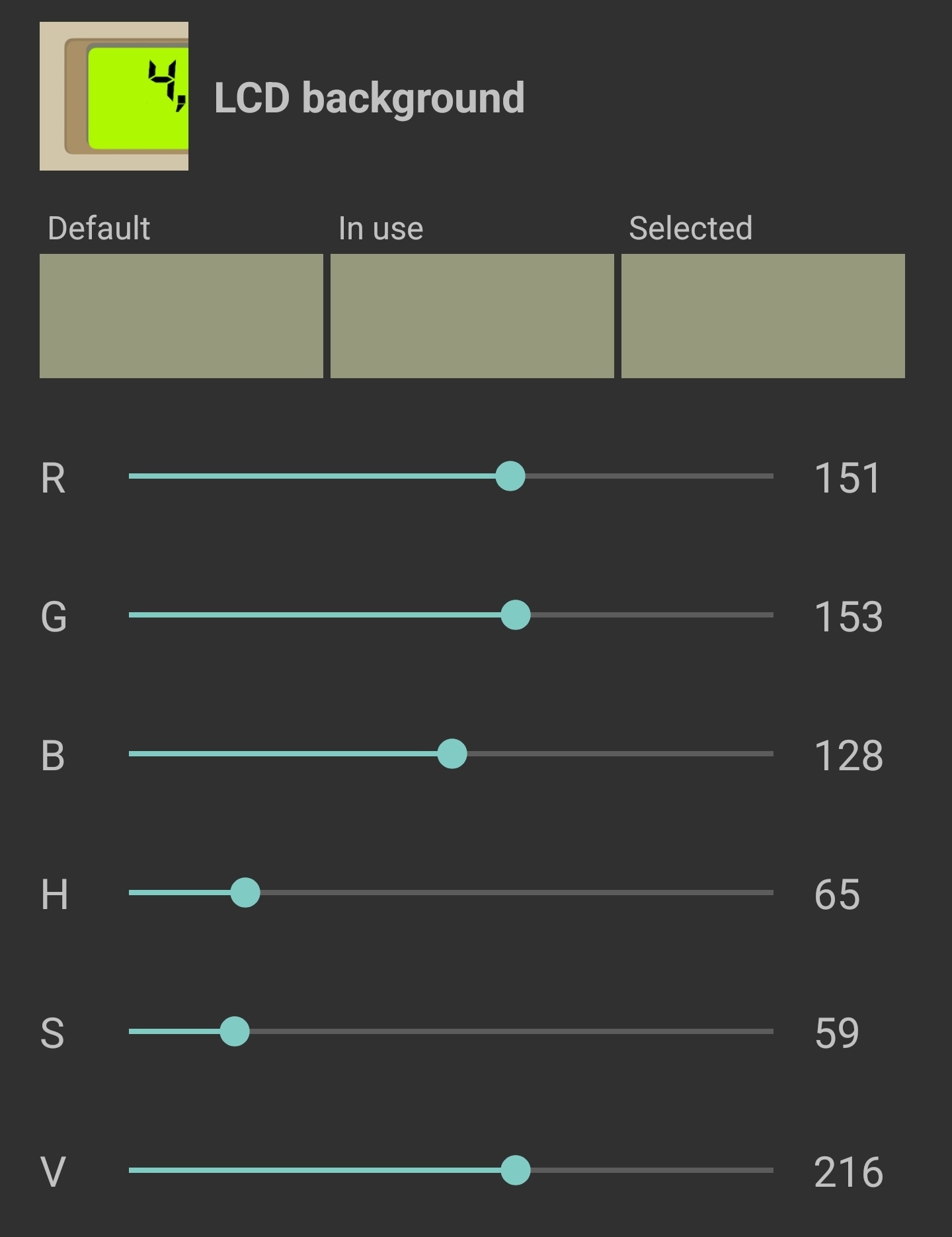
The color picker allows to choose the tone either in terms of RGB color space or HSV (Hue-Saturation-Value). Moving a slider at one group will adjust the other group.
Colors can be restored to their defaults in three levels:
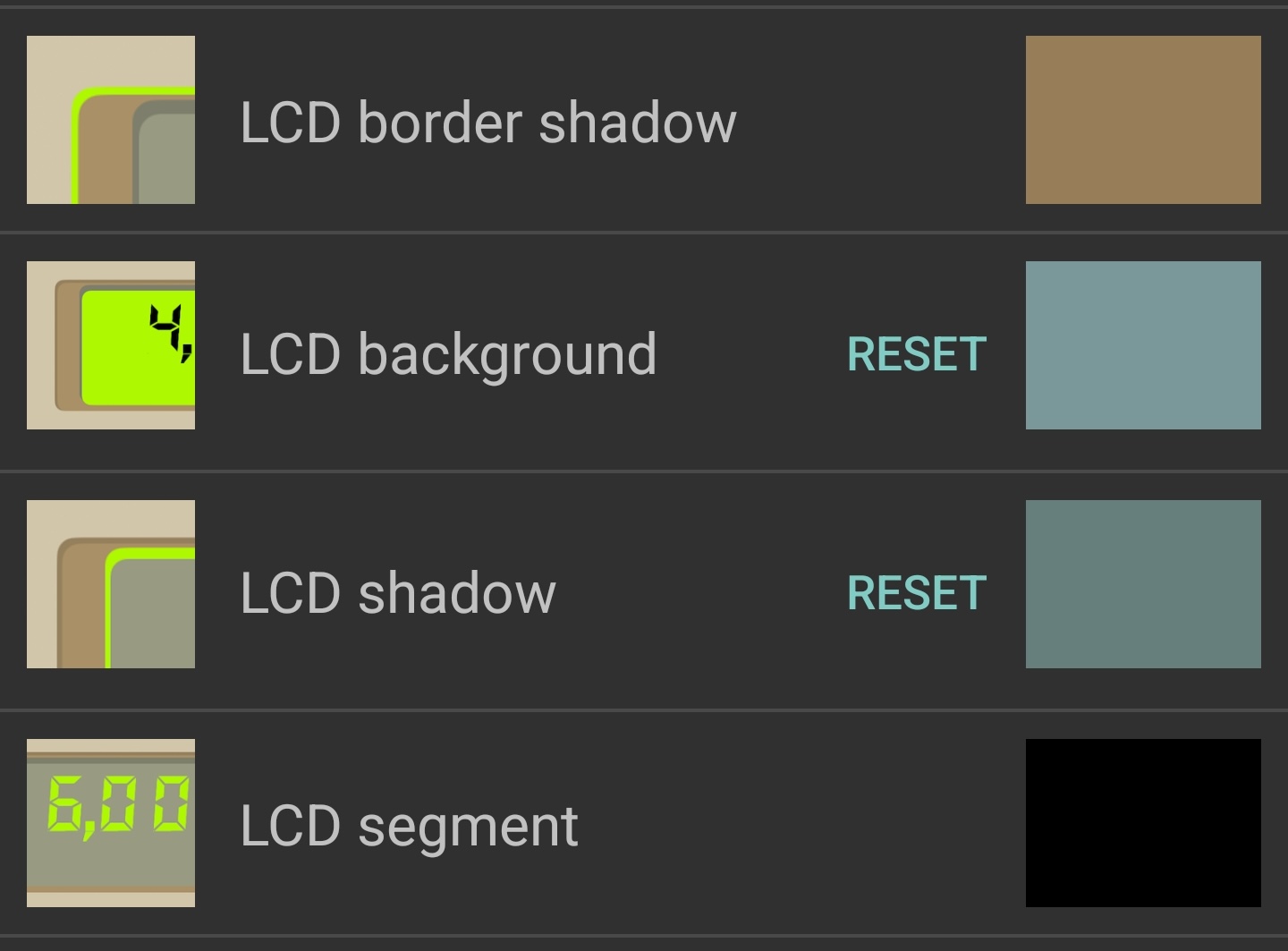
a) To restore one particular color, touch the "Reset" button left of the color sample. This button only shows up for non-default colors.
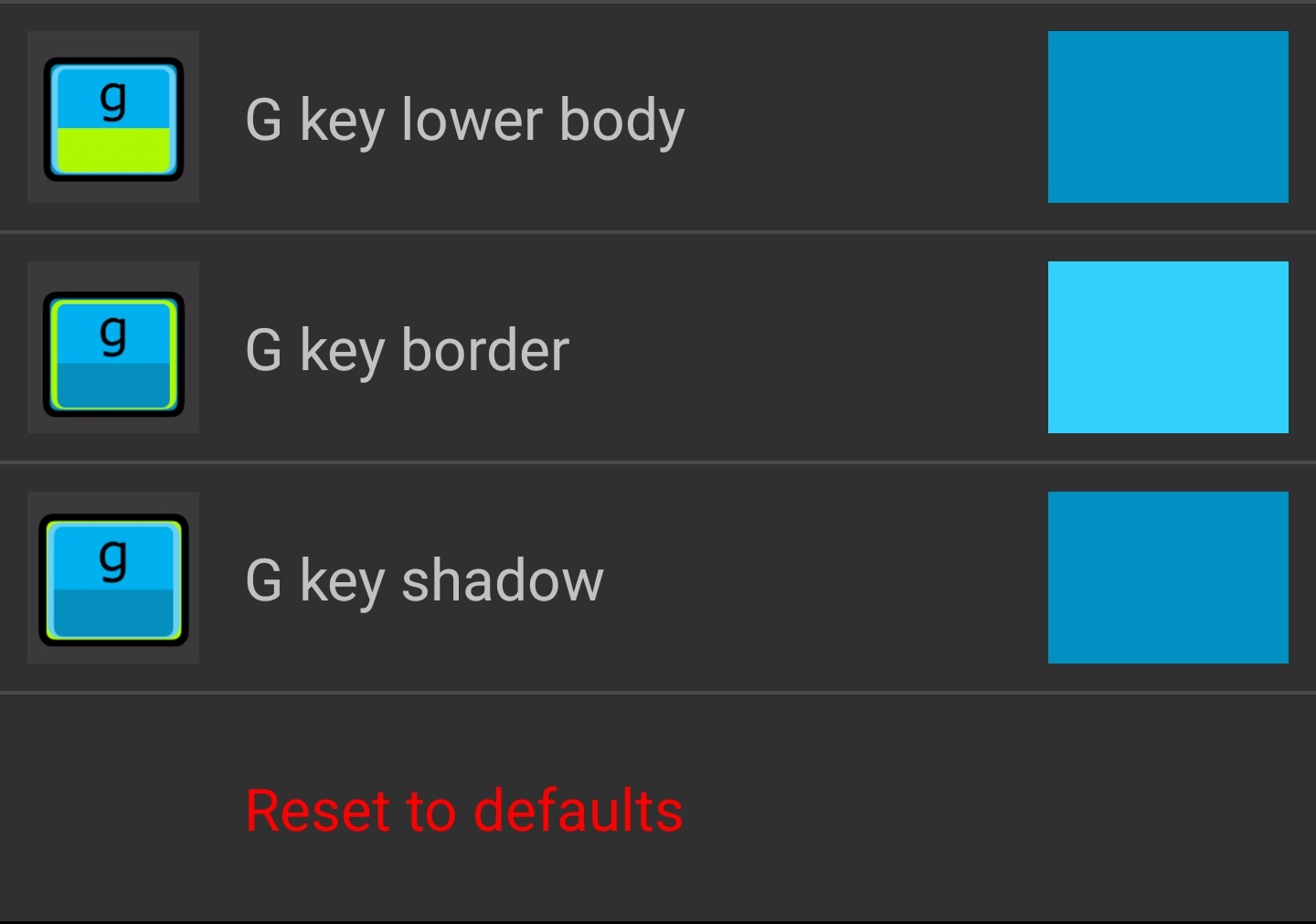
b) To reset a flavor, select it on the main pane, then go to the bottom of the color list and touch "Reset to defaults".
c) To reset all colors, go to the main pane and touch "Reset everything to defaults", at the bottom of the list.
The colors in the "All Flavors" pane cascade down to the flavors, and become the default colors for them. So, there are two places where you can tweak colors, and you may need to reset the color in both places to go back to the app's default.
Since every device has a slightly different screen tone (which varies with age) and color gamut, it is not guaranteed that a given color choice will look the same across devices.
Even within the same device, if you save a color with e.g. a given RGB or HSV code, the code may be slightly different when you go back to the color picker for the same item. This happens because the color must be translated across different color spaces, and the translation is not always lossless.